
🕵️ Redact a PDF
Permanently remove selected text/areas from a PDF.
Drag & drop a PDF here
…or click to choose a file
Tools
Pages
Preview
Active page: –
✋Pan
Tip: Drag to draw a box. Hold Space or
tap the hand to pan. Use the on-canvas +/− and reset.
Private & safe: The final PDF is rasterized at your chosen DPI and the black boxes are burned into the image. No uploads.
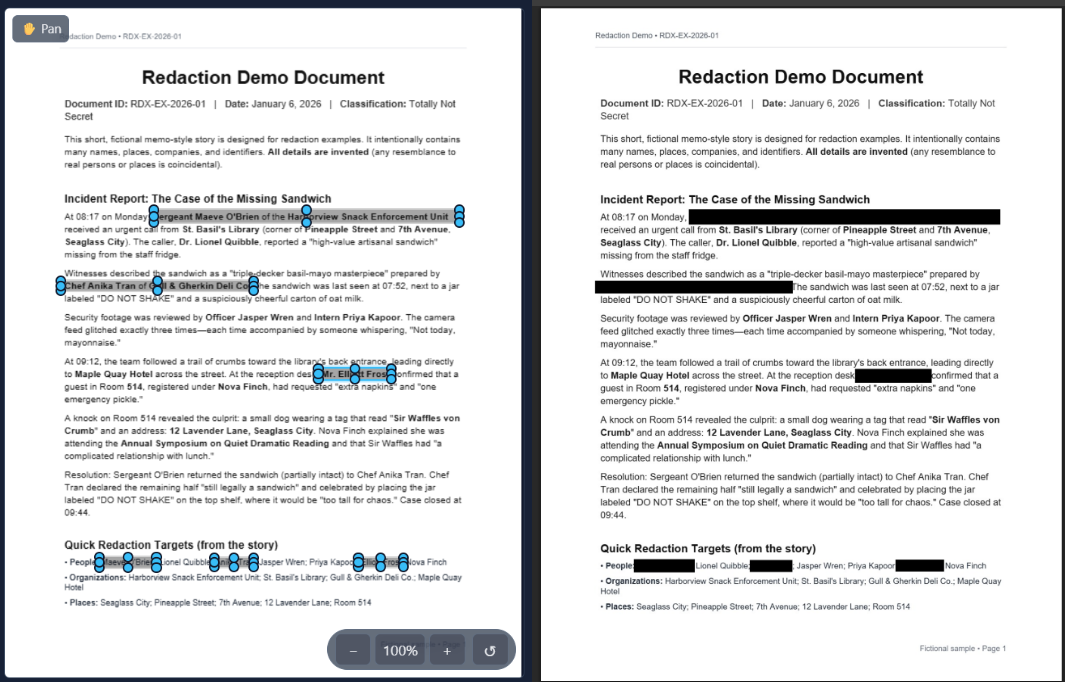
Example output
Help & FAQ — Redact PDF
How to use
- Add a PDF.
- Select text or draw boxes over areas to redact.
- Apply redaction and export the sanitized PDF.
Use cases
- Remove personal data before sharing a PDF.
- Black out sensitive sections for compliance.
Tips & FAQs
- Is redaction permanent?
- Yes—pixels/objects under the redaction are removed in the exported file.
- Can I undo?
- Keep a copy of the original; redaction cannot be reversed.
Formats & limits
- Input: PDF
- Output: PDF
- Heavily scanned PDFs may need OCR-aware redaction for best results
Privacy
All processing happens in your browser; files never leave your device.
Related tools
Related guides
Updated
12 October 2025