
Simple Paint + Timelapse Export
Draw on a blank canvas or annotate an image — then export a PNG, a timelapse video, or a small GIF.
1) Create canvas / Open image 2) Draw / annotate 3) Export: PNG • WebM • GIF
Tips: Hold Space to pan • Mouse wheel/pinch to zoom
Blank canvas
Open image
Drag & drop image here
or click to choose
Paint Tools
24 px
Colors
Zoom
100%
WebM Timelapse
GIF Preview
Export
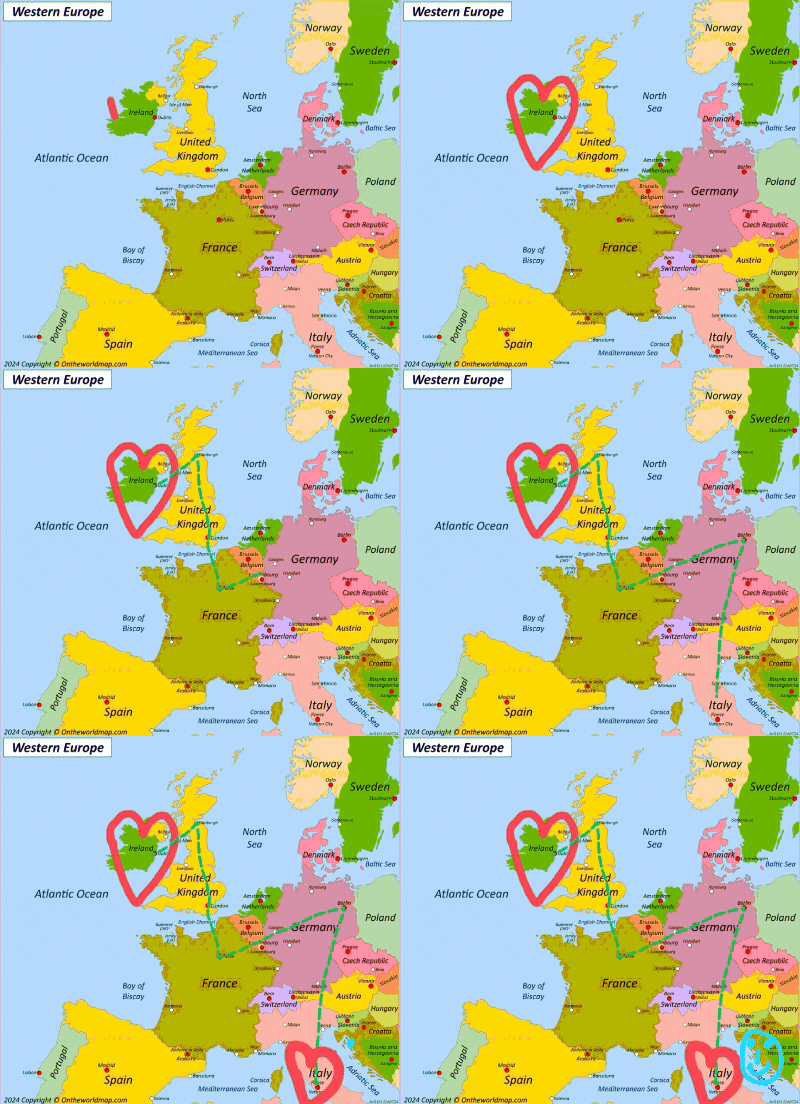
Example output
A quick look at the timelapse GIF you can export from your drawing.
Help & FAQ — Paint with Timelapse Export
How to use
- Create a blank canvas or open an image to annotate.
- Draw and edit with the paint tools while strokes are recorded.
- Export a PNG snapshot, a WebM timelapse, or a GIF preview.
Use cases
- Record a drawing process for a tutorial.
- Replay sketch steps for quick reviews.
Tips & FAQs
- Export settings explained
- Speed controls how fast strokes replay (higher = shorter video). FPS is frames per second for WebM (higher = smoother, larger file). GIF Max Side is the longest edge in pixels (smaller = much smaller file). GIF FPS lowers or raises GIF playback rate. Loop repeats the GIF indefinitely.
- Tips to reduce file size
- Lower GIF Max Side and GIF FPS, increase Speed to shorten the capture, and reduce WebM FPS when acceptable.
- Tips to increase quality
- Raise GIF Max Side and FPS for sharper, smoother playback, and lower Speed for a longer timelapse.
- Why is GIF export slow?
- Lossless GIF encoding runs entirely in the browser; longer drawings take more time to encode.
- Can I control playback speed?
- Yes—adjust Speed and FPS before exporting.
Formats & limits
- PNG, WebM, and GIF exports are generated locally
- Recording large canvases increases memory usage
- WebM export depends on browser recording support
- GIF output limited to 256 colors as per format
Privacy
Drawings and recordings stay local; exports download directly.
Related tools
Updated
15 October 2025