
🛡️ Censor (Blur / Pixelate / Black)
Drop an image, then Brush over areas or add Shapes (rect/circle). Choose Pixelate, Blur, or Black. All local.
Drag & drop an image here
…or click to choose a file
Pixel size (px)
Blur radius (px)
Tip: Hold Alt to erase.
Hold Space to pan. Wheel to zoom.
Hold H for original.
Preview
100%
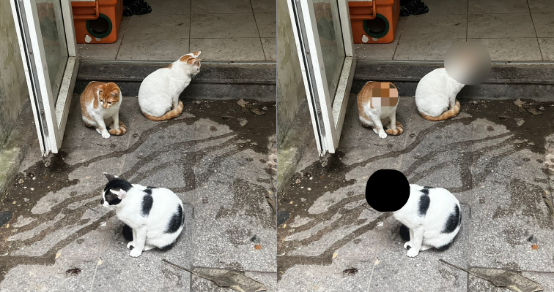
Example output
Help & FAQ — Image Censor & Blur
How to use
- Load an image you want to censor.
- Select the blur, pixelate, or block tool and paint over areas to hide.
- Adjust strength and download the redacted image.
Use cases
- Blur faces in screenshots before posting.
- Pixelate sensitive information on receipts.
Tips & FAQs
- Can I undo edits?
- Yes—use the undo/redo controls or clear the layer to restart.
- Does it permanently remove detail?
- Yes, the export bakes the blur or pixelation into the final image.
Formats & limits
- Input: PNG, JPG, WebP
- Output: PNG or JPG
- High-resolution editing may be slower on low-powered devices
Privacy
All processing happens in your browser; files never leave your device.
Related tools
Related guides
Updated
15 October 2025