
🗂️ Diagram Labeler
Upload an image, then add: Label (text chip + arrow), Pin (dot + arrow, optional numbers), or Note (plain text box, no arrow). Drag to move the label, its width handle, or the arrow tip. Background supports pan & zoom. Double-click (desktop) or use the Selected panel’s text field (mobile) to edit. Shortcuts: E/Enter edit, L straight/elbow (not for notes), A arrowhead cycle (not for notes).
Advanced ▸ Tiny images
Tips: drag empty background to pan; mouse wheel to zoom. Double-click a label or press Enter/E to edit (desktop). On mobile, use the Selected panel’s “Label text”. Selected label shortcuts: Delete, Ctrl/Cmd-D duplicate, L straight/elbow, A arrowhead cycle. Drag the small square on a label’s right edge to resize its text width.
Example output
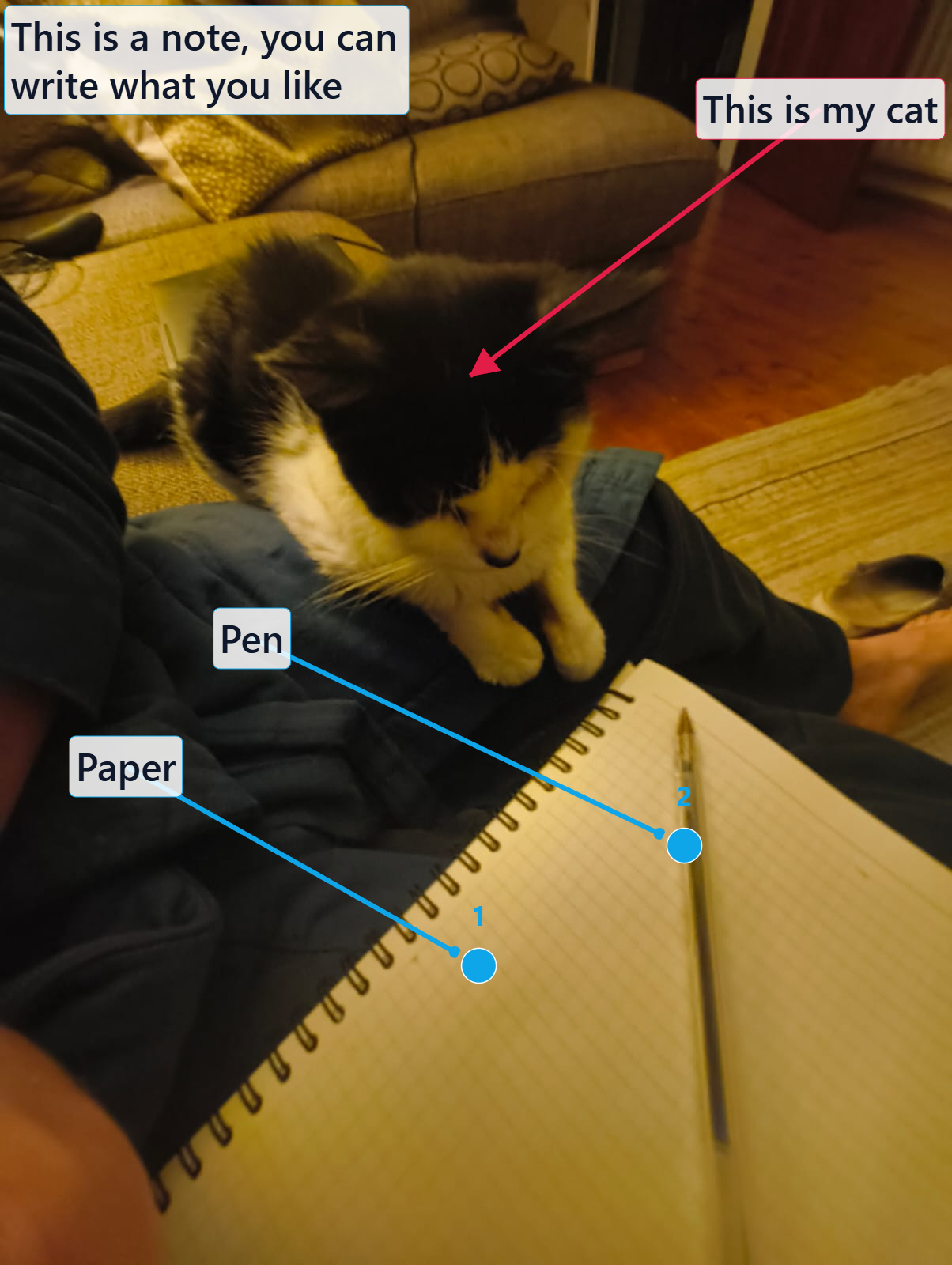
Help & FAQ — Diagram Labeler
How to use
- Upload the diagram or screenshot you want to annotate.
- Add labels, pins, or notes; drag arrows and adjust styles.
- Export as PNG or SVG with your annotations preserved.
Use cases
- Annotate diagrams for documentation.
- Label screenshots for a presentation.
Tips & FAQs
- Can I snap labels to angles?
- Use the elbow/straight shortcuts to control arrow paths precisely.
- Does it keep layers?
- Export to SVG to retain editable vectors in other tools.
Formats & limits
- Input: PNG, JPG, SVG backgrounds
- Output: PNG or SVG
- Browser memory limits apply for very large canvases
Privacy
Annotations render locally; images never upload.
Related tools
Updated
15 October 2025